Placing assets
The toolbox
The toolbox holds every placeable asset: furniture, natural elements, manufactured objects, and the architecture kit.
The catalogue is the one supplied by NOG. Importing your own assets isn't possible yet: that comes with the marketplace. See What's coming.
Selecting and handling
| Action | Effect |
|---|---|
R | Cycle gizmo mode (move, rotate, scale) |
C | Open the selected resource's settings |
Ctrl + click | Multiple selection |
| Drag a rectangle | Multiple selection, when the HUD is visible |
Ctrl + B | Put the aimed object back in hand, to place more without reopening the toolbox |
Alt + drag | Duplicate |
Delete | Delete |
F | Frame the camera on the selection |
Configuring a resource
Pressing C opens the settings for the selected object. You can only configure one resource at a time for now; bulk editing is planned.
This is where you decide how an object behaves during play:
- Grabbable: players can pick the object up in play mode
- Interactible: doors, shutters and chests can be opened
See Handling objects in play mode.
The pivot point
On some assets you can choose which handle acts as the pivot point. That's what lets you snap a beam exactly at mid-height rather than by its centre. Not every asset offers this.
The Resource Outliner
The outliner lists the objects present on your board. It lets you find and select an element without hunting for it on screen, which quickly becomes essential on a busy world.
The list scrolls automatically to show the selected object.
The three placement buttons
Below the outliner, three buttons control how objects snap into place.
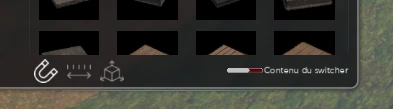
| Button | What it does |
|---|---|
| Magnet | Enables anchor snapping, so pieces connect to each other |
| Grid | Enables the placement grid |
| Cube | Switches the gizmo between world space and object space |
Anchor snapping is mostly for architecture: walls, floors and kit pieces connect to each other without manual alignment.
Gizmo space changes how the handles are oriented. In world space they always follow the map axes. In object space they follow the object's own orientation, which is handier for moving a piece that is already rotated.
Roads
Roads are drawn between two pins and Menyr computes the path. The route is saved: to recompute it, move one of the two pins.
Vegetation
Placing an asset no longer clears vegetation around it automatically. Use biome painting to control what grows where.